



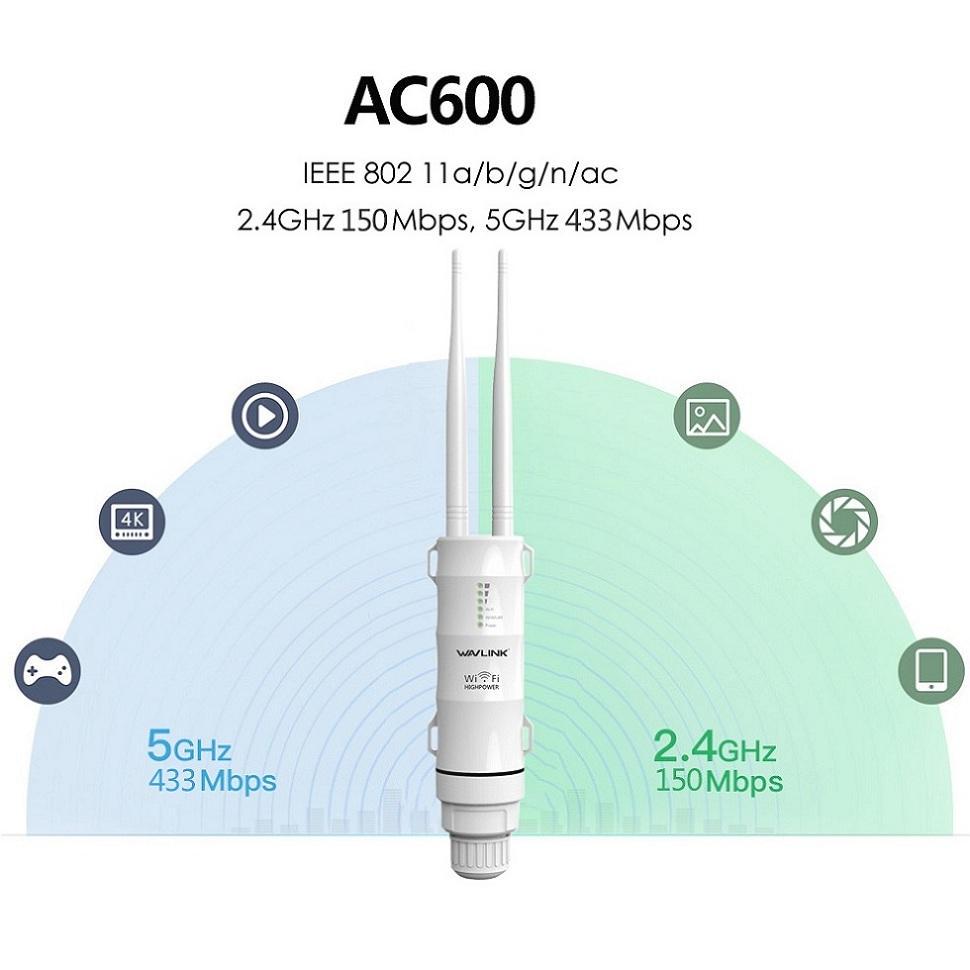
Wavlink AC600 is a weatherproof repeater, which spreads the signals all over the area. But many times, people face slow internet problems at their places. It can cause connection issues, hardware issues, and many more. If you are experiencing these issues with your wavlink repeater, then read the article carefully. Because we are going to discuss some major reasons which can reduce your wireless signals.
Perform The Wavlink AC600 Setup
Set up is the major step to get high-speed signals in your devices. If your extender setup is not proper, your devices can’t communicate with each other. So that’s why you should take knowledge about the setup of your extender and router. You can connect your repeater with different methods. Firstly, you check the WPA button on your router because, without it, you can’t connect your extender to the router. You can set up your wavlink AC600 repeater with the help of the WPS Button
After turning on the power of your extender, hold the WPS button of your extender and router until the LED lights are solid green. In the other case, you can set up your wavlink AC600 range extender with the help of wavlink extender login portal.
Connect Your Extender to The Host Router with an Ethernet Cable
You connect your wavlink AC600 range extender to your router with the ethernet cable. It is the more secure way to connect your extender and router. When devices can’t get WiFi signals then an ethernet cable helps us to connect the devices to each other. It helps us to find the problem where it is, in your extender or router.
Due to the availability of the Ethernet port, the establishment of a connection is simple. You simply need to grab your Ethernet cable and insert it into the LAN port of your AC600 extender. After that, connect the other end to your regular router’s LAN port. Finally, activate the power and inspect the connection.
Reposition Your Wavlink Repeater
Placement is the most crucial aspect when the extender is not working properly. Because the extender won’t function correctly if positioned in a crowded area. Make sure that your router should locate at the correct distance when you install your extender. Some people set up their extenders close to the extender, in situations they do not get signals all over the place. Take your extender away from the router and set it up there where it can get a pop-up signal from the router. A suitable distance between the extender and the router should be maintained, neither too close nor too far.
Change The Wireless Channels
To resolve the Internet issues, you can change the wifi channels. It is also the best option to get good wireless signals. Multiple times your neighbors use the same channels at their router and extender. So make sure to set different channels, which helps you increase your internet signal.
You must use the login admin wizard in order to log in. You may easily access the login wizard by using the 192.168.10.1 default login IP. After that do login in entering your login information. You must select the wireless setting in the extender’s settings. You can alter the wifi channel with this setting. The problem will probably then be rectified after that.
Avoid Connecting Many Devices With an Extender
When we connect devices at the same time, it will also reduce the signal speed. People face slow internet issues when they’re doing their important office work at their home. Because their children also connect to other devices at the same time. So in this crucial time connect fewer devices so that your laptop or tablet can get high internet.
Update The Firmware
If you use an outdated extender at your home then it may not connect with your latest router. If that can be the cause of the slow internet, so upgrade your wireless extender with the latest version.
Everyone wants high-speed internet because we depend on it. When it goes slow, it can create problems. So, use the above tips and tricks when your wavlink AC600 range extender is not working. With help of the upper steps, you can solve your internet issue within a few minutes.
Table of Contents

